






Performance Center – Booking Process
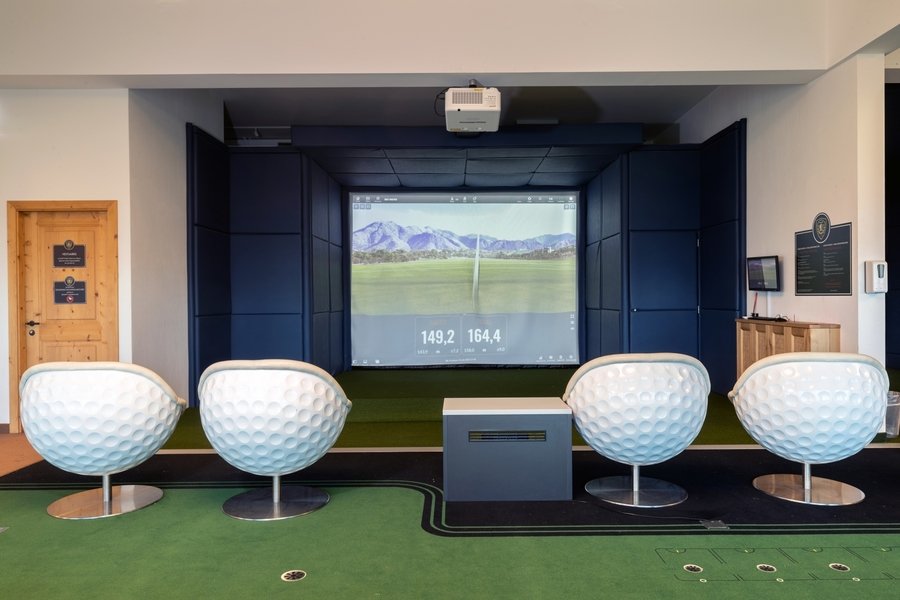
Performance Center – Booking Process
In order to improve the quality of its service, the Golf Club has implemented a new booking system for the Trackman simulators. The booking process remains the same as before: reservations are made via the Performance Center page on the Golf Club’s website. You can also make reservations through the Trackman app, as the process is similar.
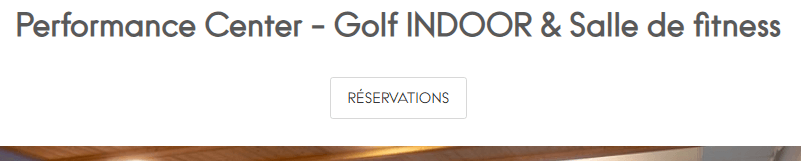
Once the “Reservations” button is selected, you will be redirected to the Performance Center page, now managed directly by Trackman. The YourGolfBooking site is connected to Trackman; therefore, whether you use YourGolfBooking or the Trackman app, the experience and functionality remain the same.

For holders of a Performance Center subscription as well as occasional players, creating a Trackman profile is mandatory (most of you already have one). At the top right of this page, you can either create a new account or log in to your existing account.

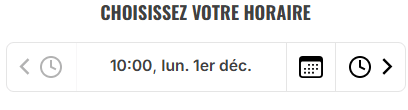
Once your account is created or you are logged in, simply choose the date and time you wish to play.
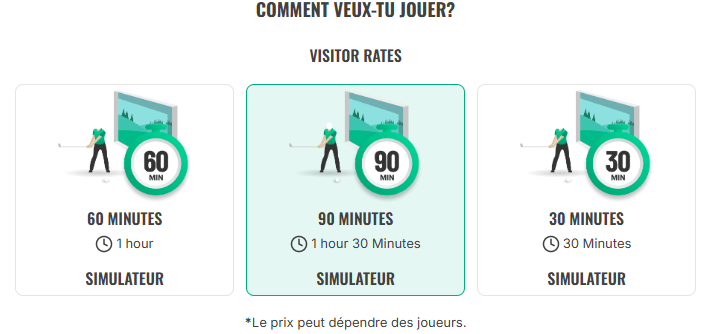
Then select the desired training duration, for example 90 minutes.
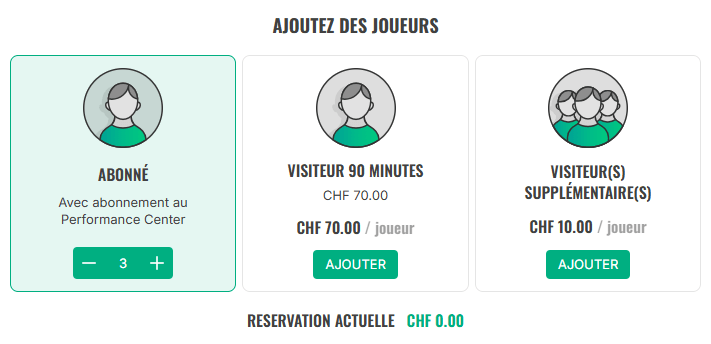
By clicking “Next”, the system will redirect you to the page for selecting the player type and the number of participants. Users with a subscription will not need to make any payment. Users without a subscription, called visitors in the system, must pay the indicated amount to confirm the reservation. In the example below, we have 3 members with a Performance Center subscription:
Next, the system will guide you to select a simulator, based on the availability at the Performance Center for the chosen date and time.
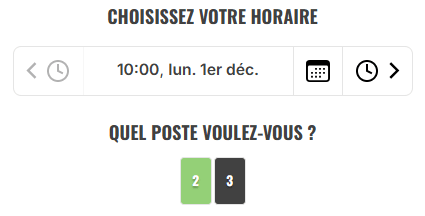
In this example, only simulators 2 and 3 are available. I then select simulator 3, click Next, and confirm my cart. The Trackman system will then display a summary of the reservation:
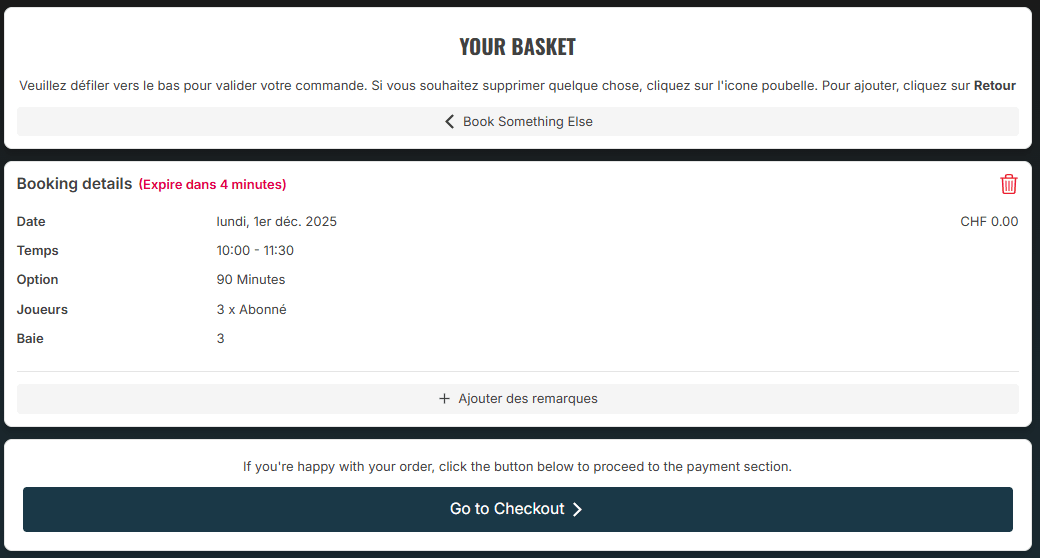
If everything is correct, click “Go to Checkout”, and on the next menu it is important to select “Complete Reservation”. If this step is not completed, your reservation will not be saved. If the reservation is successfully completed, the following message should appear:

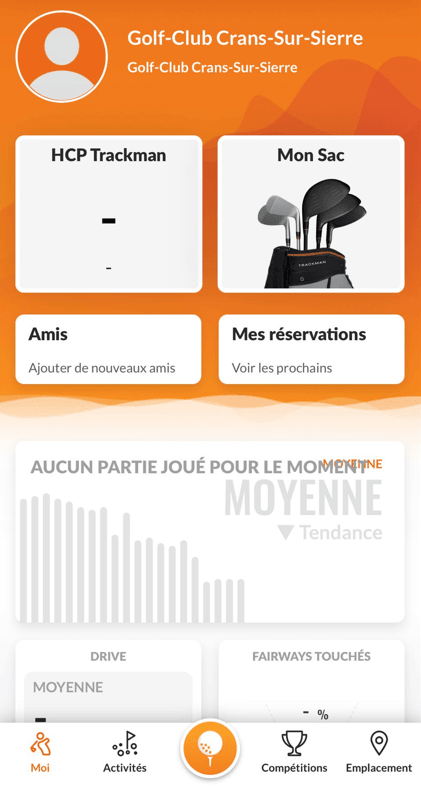
Once the reservation is successfully made, it will be recorded in your Trackman app under Reservations.
The Day of Your Session – How to Access the Simulator
ATTENTION: Simulators are now locked. It is no longer possible to access the Performance Center or use a simulator without a prior reservation.
Step 1 – Confirmation Email
For every reservation, you will receive a confirmation email containing two essential pieces of information. Keep this email in your inbox:
-
Lock Screen Pin: This code allows you to unlock the simulator you reserved at the start of your session. It is essential to keep this code in your email!
-
Click and Enter Link: This is intended for visitors or users who do not have a Performance Center access card. Simply click the link and enter the code provided in the email to open the Performance Center door. Only use this code when you are standing in front of the door. Keep it in memory!

Step 2 – Open the Door
-
Upon arrival at the Performance Center door, open the confirmation email for your reservation.
-
Note or memorize the Dormakaba Pin provided.
-
Click the “Click and enter” button, enter the code in the designated field, and the door will unlock automatically.
-
You can now enter the Performance Center.
N.B. Users with a membership and an access card will use the access card to get into the Performance Center.
Step 3 – Start the Simulator
-
Go to the simulator you reserved.
-
If the simulator is available, your reservation will be displayed on the screensaver.
-
1 minute before your reservation, Trackman will allow you to enter the Lock Screen Pin.
-
Enter the code to access your session and begin your training.
-
At the end of your reserved time, a 5-minute countdown will appear on the screen to indicate the remaining time.
The Golf Club remains at your disposal for any questions by email at info@golfcrans.ch.
We wish you an enjoyable indoor golf season at the Performance Center!